 Like Us!



Customization Guide – Edit Sorting Bar Styling Properties
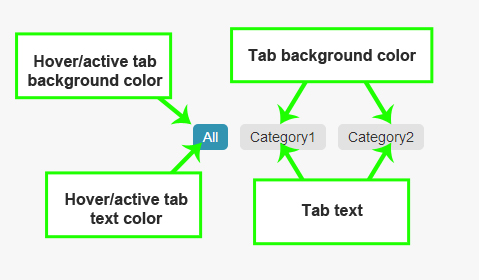
You can customize the follow style properties of your sorting bar
1) Tab background color
2) Tab Text color, style, and size
3) Hover/active tab background color
4) Hover/active tab text color
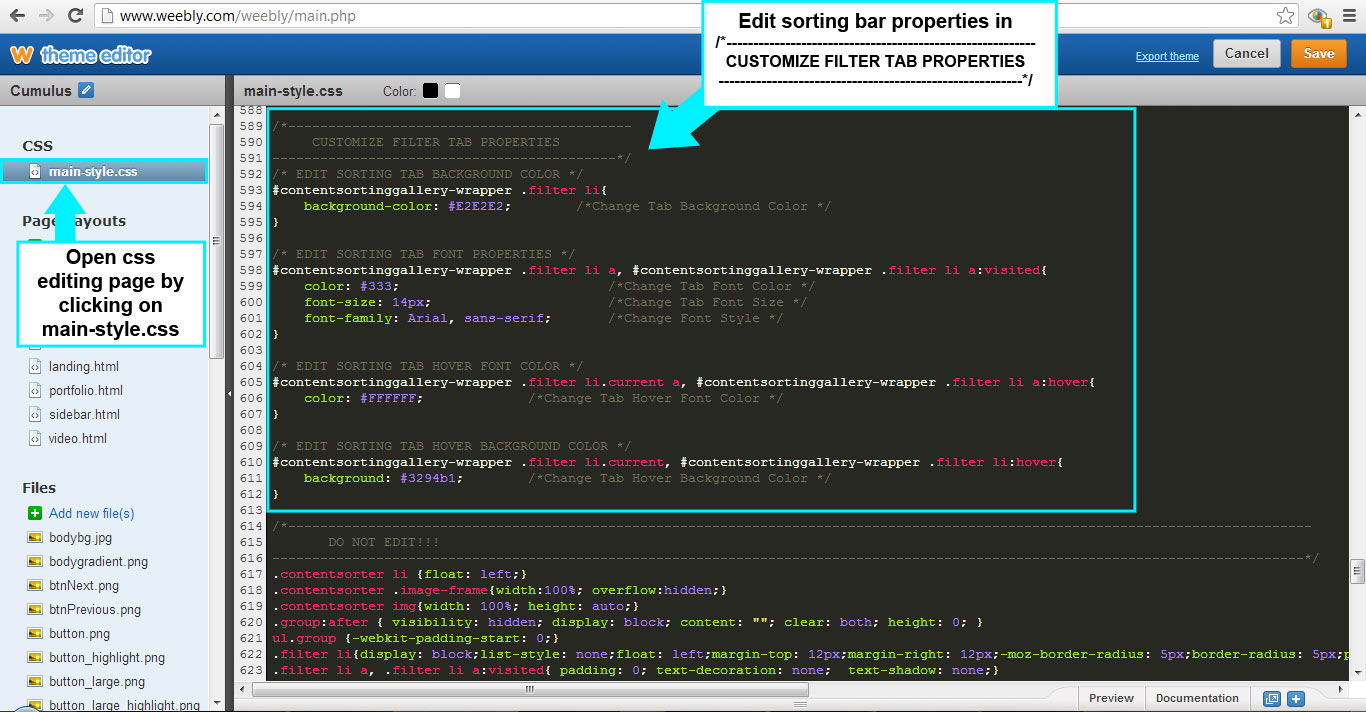
Step1: Open main-style.css
In the main-style.css, scroll down the page till you find the following marker code:
/*——————————————-
CUSTOMIZE FILTER TAB PROPERTIES
——————————————-*/
The codes directly underneath the marker is where we will edit the styling of the sorting bar
1) Tab background color

The default color is #E2E2E2 (Lightgray). You can insert any hex color code to change the tab background color. You can click here to select your hex color code.
2) Tab Text color, style, and size

i) Change Font Color
The default color is #333. You can change this to any hex color code to change the font color
ii) Change Font Size
The default font size is 14px. You can change that to any other number to change the font size
iii) Change Font Style
The default font-family is Arial. You can change the font family to change the font style
3) Hover/active tab background color

The default background color for the tab on hover or when active is #3294b1 (light blue). You can insert any hex color code to change the tab background color. You can click here to select your hex color code.
4) Hover/active tab text color

The default font color the hover/active tab is #FFFFFF (white). You can change this to any hex color code to change the font color